CME WIDI Jack Review (Keyboard → iPad / Mac / Windows 11)
After using MIDI cables for decades, the CME WIDI Jack feels like a real step forward: a wireless Bluetooth MIDI adapter that lets you play software instruments without long cables everywhere. I tested it across iPad (iOS), an older iMac (macOS), and a Windows 11 PC.
I tested with Pianoteq (I own the paid version), but that’s just one example — you can use any instrument, including free plugins and free instrument apps. The WIDI Jack is simply sending MIDI data.
Real-world workflow: play anywhere without MIDI cables
The biggest advantage I’ve noticed is simple: once the WIDI Jack is paired, my keyboard can sit anywhere in the music room, and I can play any device that supports Bluetooth MIDI (iPad, Mac, Windows) with a virtual instrument loaded. No long MIDI cables dangling everywhere.
Pro tip: Bluetooth MIDI connections are often “single-host”. If another device has already claimed the WIDI Jack connection, you may need to disconnect that device first before pairing to the next one.
My actual setup (photos)
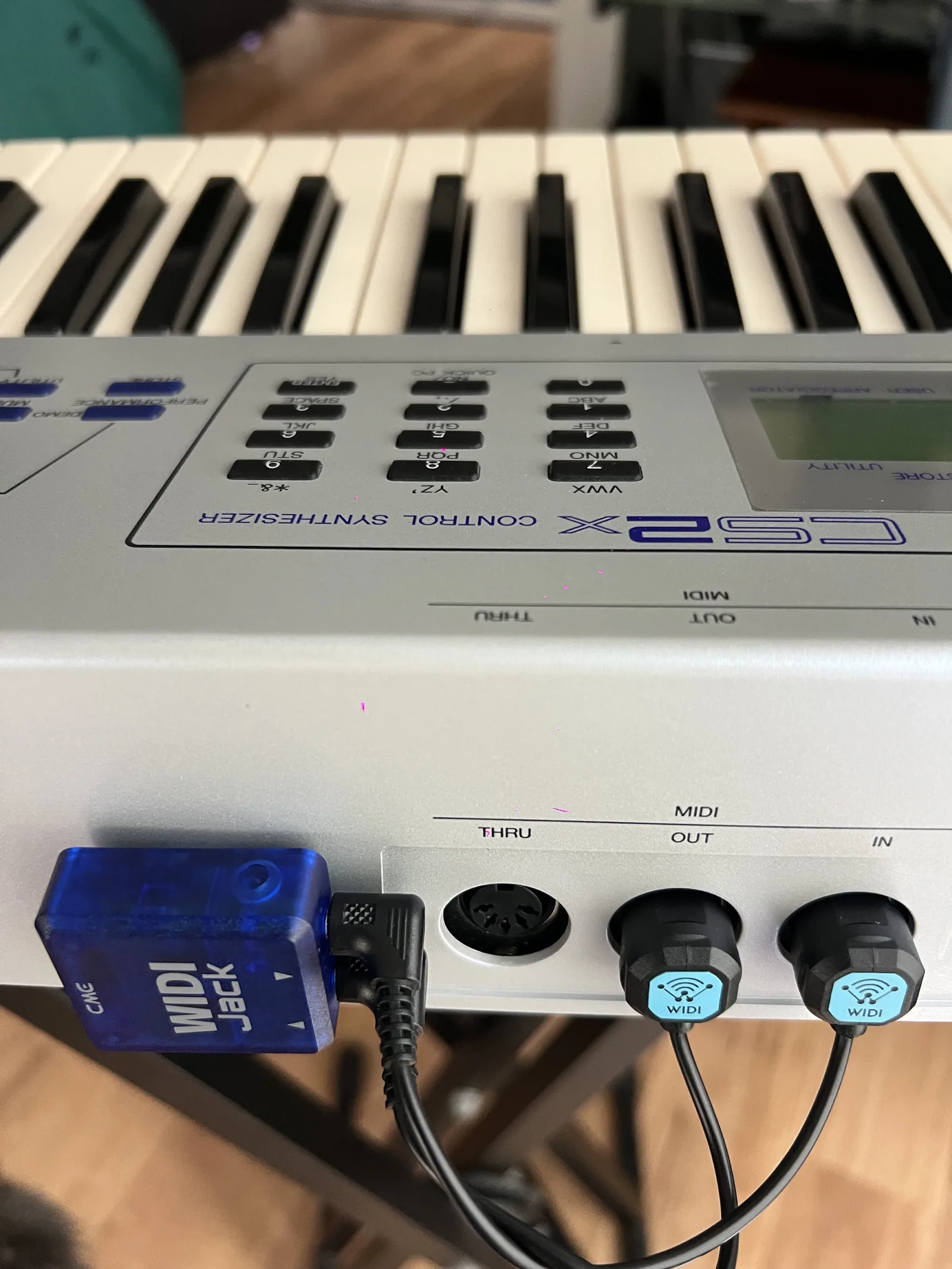
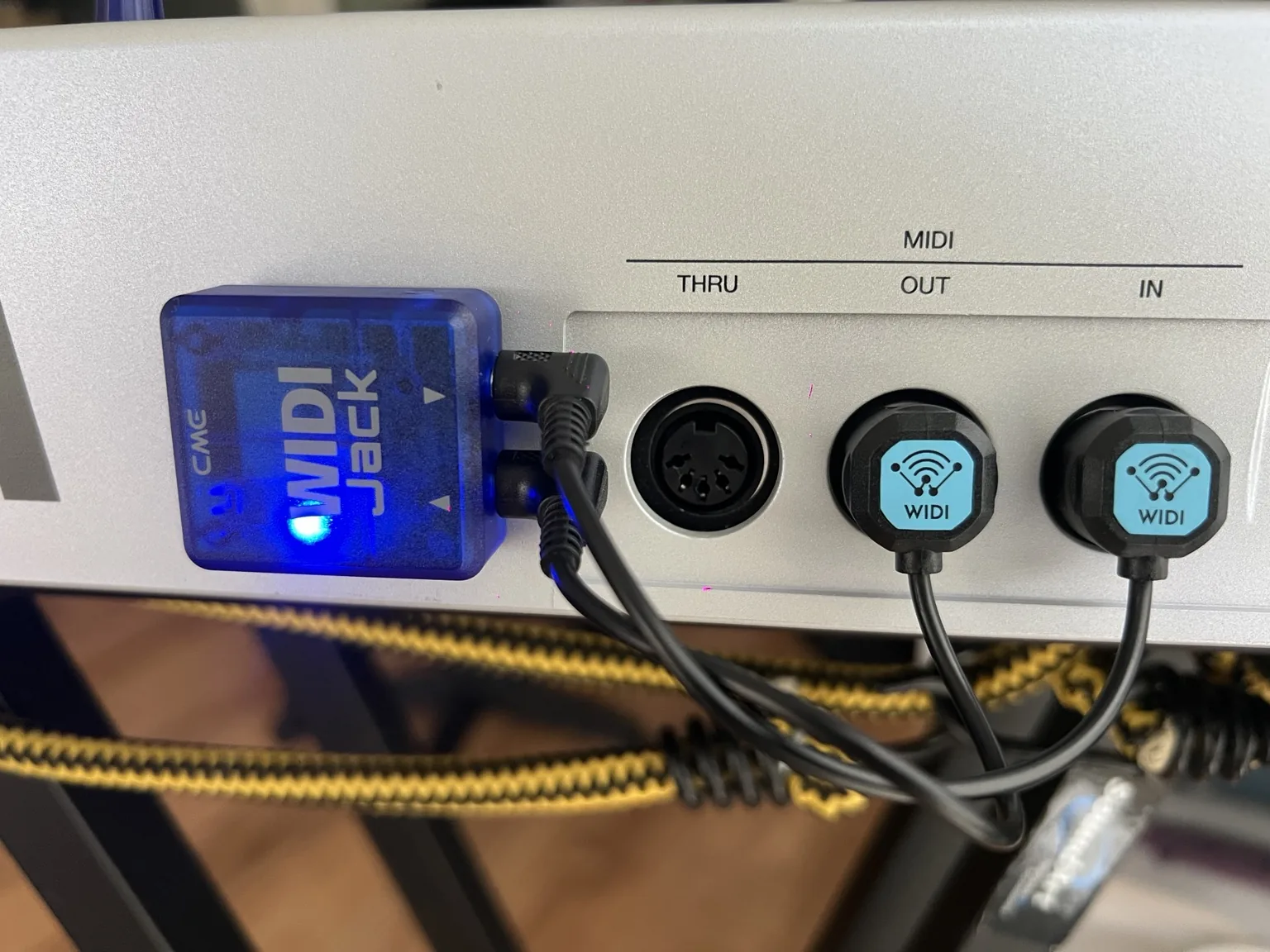
Related: What is Wireless MIDI? • Wireless MIDI troubleshooting • Best wireless MIDI adapters (2026)
Back to: Wireless MIDI hub • Pillar guide: What Is Wireless MIDI?
What the WIDI Jack is (plain English)
The WIDI Jack is a Bluetooth MIDI adapter that plugs into the standard 5-pin DIN MIDI ports on a keyboard/controller. Once paired, your iPad or computer sees it like a normal MIDI device.
iPad setup (iOS): easiest entry point
- Download the WIDI app from the Apple App Store.
- Power the WIDI Jack and open the app.
- Pair/connect the WIDI Jack in the app.
- Open a software instrument and play wirelessly from your MIDI keyboard.
Once connected, it was straightforward to load an instrument and play. The response felt immediate and very playable.
If you’re building an iPad + keyboard setup, Wireless MIDI is one of the cleanest ways to reduce cable clutter.
macOS setup (older iMac): Audio MIDI Setup
- Open Audio MIDI Setup (Utilities).
- Open the MIDI Studio window.
- Click the Bluetooth icon and select the WIDI Jack.
- Once connected, it appears like a normal MIDI device.
This worked quickly for me. I played Pianoteq wirelessly on macOS, and I also tested REAPER with virtual instruments — MIDI input behaved exactly like a normal controller.
Windows 11 setup: most involved (but worth it)
- Download and install the Korg BLE-MIDI driver.
- Ensure Bluetooth is enabled on the PC.
- Pair/connect the WIDI Jack.
Important pairing tip: disconnect other connections first
Windows pairing became much easier once I realised the WIDI Jack was still connected to my iPad. Disconnect the WIDI Jack from other devices first, then pair on Windows.
CME WIDI Jack latency test (iPad, Mac & Windows 11)
Your “feel” depends on both Bluetooth MIDI latency and audio driver latency. On Windows, using an ASIO driver can make the biggest difference.
Windows latency optimisation: ASIO4ALL
Installing ASIO4ALL reduced latency to around ~1.5ms (depending on buffer settings), which felt fantastic for playing virtual instruments.
If you’re setting up instruments in REAPER, see: How to Install VST Plugins in REAPER (Windows & Mac).
Pros and cons
Pros
- True cable-free MIDI (clean studio/practice setups)
- Worked across iPad, macOS and Windows 11 in real testing
- Very playable latency, especially with ASIO on Windows
- Great for iPad rigs and flexible home studios
Cons
- Windows setup requires extra steps (driver + Bluetooth management)
- You may need to disconnect other devices before pairing elsewhere
- Bluetooth is short range (room/studio)
Who this is perfect for
- Keyboard players who want less cable clutter
- iPad musicians using instrument apps
- REAPER users running virtual instruments on Mac or Windows
- Anyone modernising an older MIDI keyboard/controller
Related reading
- What Is Wireless MIDI? (Bluetooth MIDI Explained)
- Wireless MIDI hub
- MIDI Controllers Blog
- Best Free VST Plugins
Affiliate disclosure
Some links on this page may be affiliate links. If you buy through them, I may earn a small commission at no extra cost to you. This helps support Music Using Tech and keeps the guides free.