Want to Ditch the MIDI Cables? Here’s How Wireless MIDI Actually Works
Connect a keyboard to your iPad, Mac or Windows PC over Bluetooth, with a real-world test, setup steps and fixes for laggy playback.
Wireless MIDI lets you connect a MIDI keyboard (or other MIDI gear) to an iPad, Mac, or Windows computer without using traditional MIDI cables.
If you’ve been using MIDI cables for decades, this can feel like a genuine game-changer — especially for mobile setups, iPads, and clutter-free studios.
Start here
Wireless MIDI explained (pillar guide)
What Is Wireless MIDI? (Bluetooth MIDI Explained)
Hands-on review
CME WIDI Jack Review (Keyboard → iPad / Mac / Windows 11)
Best picks (money page)
Best Wireless MIDI Adapters (2026) – iPad, Mac & Windows 11
Troubleshooting (fixes)
Wireless MIDI Troubleshooting (iPad, Mac & Windows 11)
Featured review: CME WIDI Jack (real-world test)
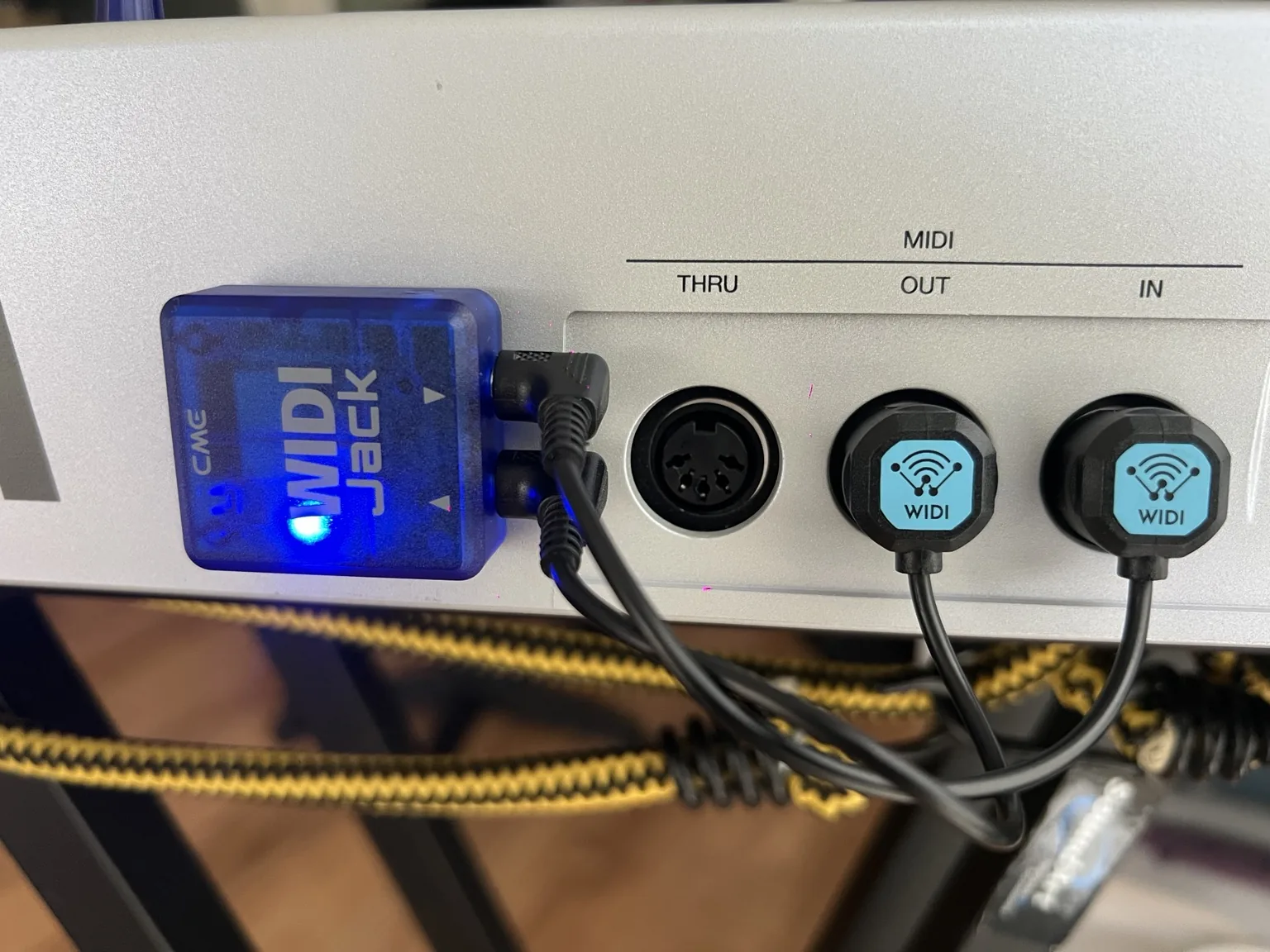
I tested the CME WIDI Jack across iPad (iOS), macOS, and Windows 11 with real keyboards and virtual instruments (including REAPER).
Includes pairing tips (single-host Bluetooth), setup steps, and latency notes for Windows (ASIO).
Quick tip: If Wireless MIDI feels “laggy” on Windows, the fix is often your audio driver. Using an ASIO driver (for example, ASIO4ALL) and lowering buffer size can make the playing feel tight and responsive.
Step-by-step VST install + enabling MIDI inputs properly.
Free instruments & effects to test your Wireless MIDI setup.
More MIDI workflows, gear tips, and controller guides.
Fix pairing issues, dropouts, and latency on iPad, Mac & Windows 11.
What you’ll learn in this section
- How Bluetooth MIDI works
- Latency myths vs reality
- iPad, Mac, and Windows compatibility
- Which wireless MIDI adapters are actually worth buying
- How to fix pairing issues, dropouts, and latency
Setting up a wireless MIDI rig? Grab the free REAPER cheat sheet: 18 shortcuts, key settings and a free plugin starter pack on one printable page.
Get the Free Cheat Sheet →Affiliate disclosure
Some links on this site may be affiliate links. If you purchase through them, I may earn a small commission at no extra cost to you.